
Showing posts with label Tips. Show all posts
Showing posts with label Tips. Show all posts
Thursday, 2 October 2014
0
Thursday, 2 October 2014
Unknown

[1] Open youtube -> Select the video.
when the video is playing click on the address bar and replace the word 'youtube' with 'voobys' and press enter. You will be redirected to another site, there you can see DOWNLOADbutton, Click on it. For this method you should have Java installed on your computer once.
[2] When the video is playing click on the address bar (URL)
Then delete www and the period (Dot) and just type 'ss' just before 'youtube' and press ENTER.
You can download that video in any format you want including MP3.

Read More
How to download Youtube Video without any Software.?
There are many ways you can download youtube videos without any software.
[1] Open youtube -> Select the video.
when the video is playing click on the address bar and replace the word 'youtube' with 'voobys' and press enter. You will be redirected to another site, there you can see DOWNLOADbutton, Click on it. For this method you should have Java installed on your computer once.
[2] When the video is playing click on the address bar (URL)
Then delete www and the period (Dot) and just type 'ss' just before 'youtube' and press ENTER.
You can download that video in any format you want including MP3.
Sunday, 27 April 2014
0
Sunday, 27 April 2014
Unknown
Step-2 : Go to 'Option'
Step-3 : Go to 'Downloads'.
 Step-4 : Click On 'File Manager' Tab.

Accessed...!!!
Read More

How to Open File Manager in UC Browser ?
Follow This Steps to Open FileManager In UC Browser.
Step-1: Open UC Browser. |
| After Step-1 Completed. |
Step-2 : Go to 'Option'
 | |
| After Completed Stetp-2. |
Step-3 : Go to 'Downloads'.
Accessed...!!!

Posted in MobileTips, Tips
6
Unknown

(1)Open File Manager in UC Browser.
If You Don't know,How to Open It in UC Browser??
>> Click Here <<
(2)Find The Folder which include your personal or private photos,Video and MP3 Files.
(3)Rename it with 'dot' .
Example : If My File Folder Name is 'MyFolder'.Then After Renamed,It will be '.MyFolder'.
(4)Congratulation..!! You Have Hide It...!
Follow this Steps to Unhide
Same Process..But In Reverse Mode.
(1)Remove dot from Folder Name.
It's too simple....!!!
Read More
How to Hide Photos And Video From Gallery Using UC Browser(Only in Android)??
Follow This Steps to Hide

If You Don't know,How to Open It in UC Browser??
>> Click Here <<
(2)Find The Folder which include your personal or private photos,Video and MP3 Files.
(3)Rename it with 'dot' .
Example : If My File Folder Name is 'MyFolder'.Then After Renamed,It will be '.MyFolder'.
(4)Congratulation..!! You Have Hide It...!
Follow this Steps to Unhide
Same Process..But In Reverse Mode.(1)Remove dot from Folder Name.
It's too simple....!!!
Posted in Android, MobileTips, Tips
Thursday, 24 April 2014
0
Thursday, 24 April 2014
Unknown

(1) Go to C:/windows/system32.
(2) Copy cmd.exe and paste it on desktop.
(3) Rename cmd.exe to sethc.exe.
(4) Copy the new sethc.exe to system 32,when windows asks foroverwriting the file,then click yes.
(5) Now Log out from your guest account and at the user select window,press shift key 5 times.
(6) Instead of Sticky Key confirmation dialog,command prompt with full administrator privileges will open.
(7) Now type “ NET USER ADMINISTRATOR “zzz” where “zzz” can be any password you like and press enter.
(8) You will see “ The Command completed successfully” and then exit the command prompt and login into administrator with your new password.
(9) Bravo !! Now You have hacked admin through guest account.
Read More
How To Know Admin Password Through Guest Account ?
Follow This Steps
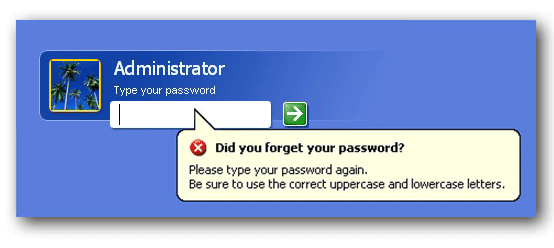
(1) Go to C:/windows/system32.
(2) Copy cmd.exe and paste it on desktop.
(3) Rename cmd.exe to sethc.exe.
(4) Copy the new sethc.exe to system 32,when windows asks foroverwriting the file,then click yes.
(5) Now Log out from your guest account and at the user select window,press shift key 5 times.
(6) Instead of Sticky Key confirmation dialog,command prompt with full administrator privileges will open.
(7) Now type “ NET USER ADMINISTRATOR “zzz” where “zzz” can be any password you like and press enter.
(8) You will see “ The Command completed successfully” and then exit the command prompt and login into administrator with your new password.
(9) Bravo !! Now You have hacked admin through guest account.
Tuesday, 22 April 2014
0
Tuesday, 22 April 2014
Unknown
 Many
times it occurs that your mouse stop working due to some reasons, in
that case you are unable to use the mouse pointer. You may face
so many difficulties to work on your computer. In this post I am going
to share a trick by which you can control the mouse pointer
without actually using mouse. You can do this with the help of keyboard.
Some simple steps are given below by which you can perform this trick.

Read More
Your Mouse Isn't Working..Don't Get Confused
How to Use Mouse Without Actually Using it?
1. First of all click on start button by pressing windows key on your Keyboard.
2. Than with the help of arrow keys navigate to Control Panel option and than press enter.
3. Now again with the help of arrow keys navigate to Accessibility Options and than press enter.
3. Now again with the help of arrow keys navigate to Accessibility Options and than press enter.
4. In the next window, go to mouse option by pressing Tab button 9 times and than pressing right arrow key.
5. Now again press Tab button and than Space-bar to select Use Mouse Keys Option.
6. You can also change the mouse pointer options such as its speed, Acceleration by going to Settings option.
7. Than with the help of Tab button go to OK option and than press enter.
8. If every thing will be done correctly than you will be able to see a mouse icon in the system tray near the system time.
9. Now you can move mouse pointer with the help of buttons 7, 8, 9, 4, 6, 1, 2, 3 on the Numpad. Button 5 on the Numpad can be used to perform mouse’s left button function.
Note: To control mouse pointer with keyboard the Num Lock key must be on.
Update: Or you can try a simple way i.e. just press Alt+Shift+Num Lock at a time, then activate mouse keys in the dialogue box that appears and press ok.
Update: Or you can try a simple way i.e. just press Alt+Shift+Num Lock at a time, then activate mouse keys in the dialogue box that appears and press ok.
1
Unknown
 C4droid is a user-friendly (but powerful) C/C++ IDE + C/C++ compiler for Android.
Basic features:
- Offline C compiler: create your own applications on Android device and run them even without Internet access
- Source code editor with syntax highlighting, tabs, code completion, code formatting, file association and infinite undo/redo
- Export&share your programs as APKs or native executables (for terminal apps)
- No root required (but C4droid can use it for your programs if you want)
- Full ANSI C and ISO C99 support with TCC (Tiny C Compiler) + uClibc
- Customizable GUI, choose where to place tabs and buttons by yourself, themes are also supported. More features with a free GCC plugin:
- Full C++ and almost complete C++11 support with GCC + Bionic libc
- NativeActivity, Qt, SDL and SDL2 support for GUI
- The most recent version of GCC always available
- Makefile support: use the same build scripts as on your PC (BusyBox is included)
- Semi-automatic open-source library porting feature for enhanced programming & education.
Read More
Turbo C/C++ On 'Android' :Run C Program In Your Android Device.

Overview
- Offline C compiler: create your own applications on Android device and run them even without Internet access
- Source code editor with syntax highlighting, tabs, code completion, code formatting, file association and infinite undo/redo
- Export&share your programs as APKs or native executables (for terminal apps)
- No root required (but C4droid can use it for your programs if you want)
- Full ANSI C and ISO C99 support with TCC (Tiny C Compiler) + uClibc
- Customizable GUI, choose where to place tabs and buttons by yourself, themes are also supported. More features with a free GCC plugin:
- Full C++ and almost complete C++11 support with GCC + Bionic libc
- NativeActivity, Qt, SDL and SDL2 support for GUI
- The most recent version of GCC always available
- Makefile support: use the same build scripts as on your PC (BusyBox is included)
- Semi-automatic open-source library porting feature for enhanced programming & education.
Download
Follow this link to download ***CLICK HERE***
Posted in Android, MobileTips, Tips
Subscribe to:
Posts (Atom)


